
I have worked on a lot of Odoo upgrades recently, especially with clients trying to avoid additional renewal costs when their database falls too far behind the supported versions.
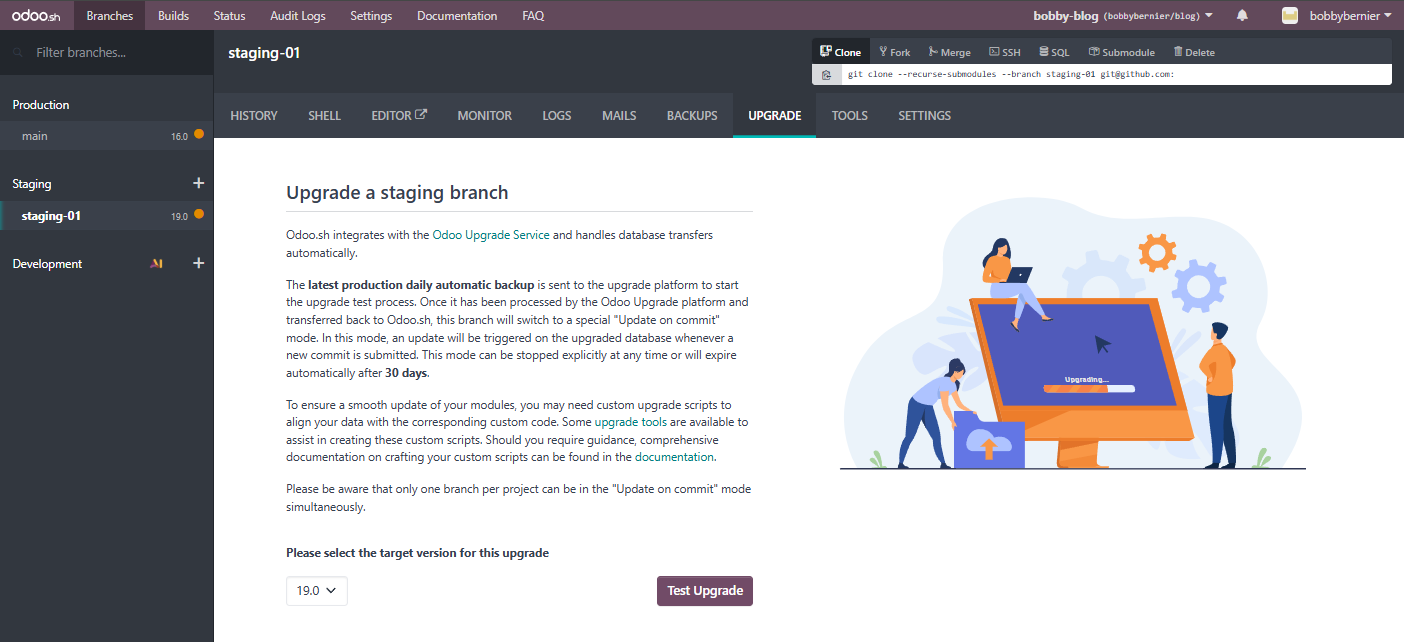
One of the real advantages of being on Odoo.sh is that the upgrade process is integrated with the platform, and upgrading a standard database requires a single click of a button. Usually though, if a client is paying for Odoo.sh, it's because they needed to customise their system with custom modules, Studio changes, reports, automated actions, integrations, custom views and other business behaviour that could not fit well within the standard Odoo processes.
That means the upgrade is not simply a case of pressing a button and waiting for the new version to appear. Instead, this starts a structured process where the project needs developer preparation, staging review, user testing and sensible go-live planning.
This article explains how the Odoo.sh upgrade process works in practice, where the custom modules come into the process, from both the developer and the user viewpoints.
Please note this is specifically about Odoo.sh projects. Self-hosted upgrades, OpenUpgrade-based migrations, and Odoo Online projects follow a different process.
What Odoo.sh Does First
The usual starting point is to launch an upgrade test from a staging branch. Odoo.sh takes the latest production daily automatic backup and sends it through the Odoo upgrade process, where the standard Odoo modules are upgraded first, including the Community and Enterprise parts of the system.
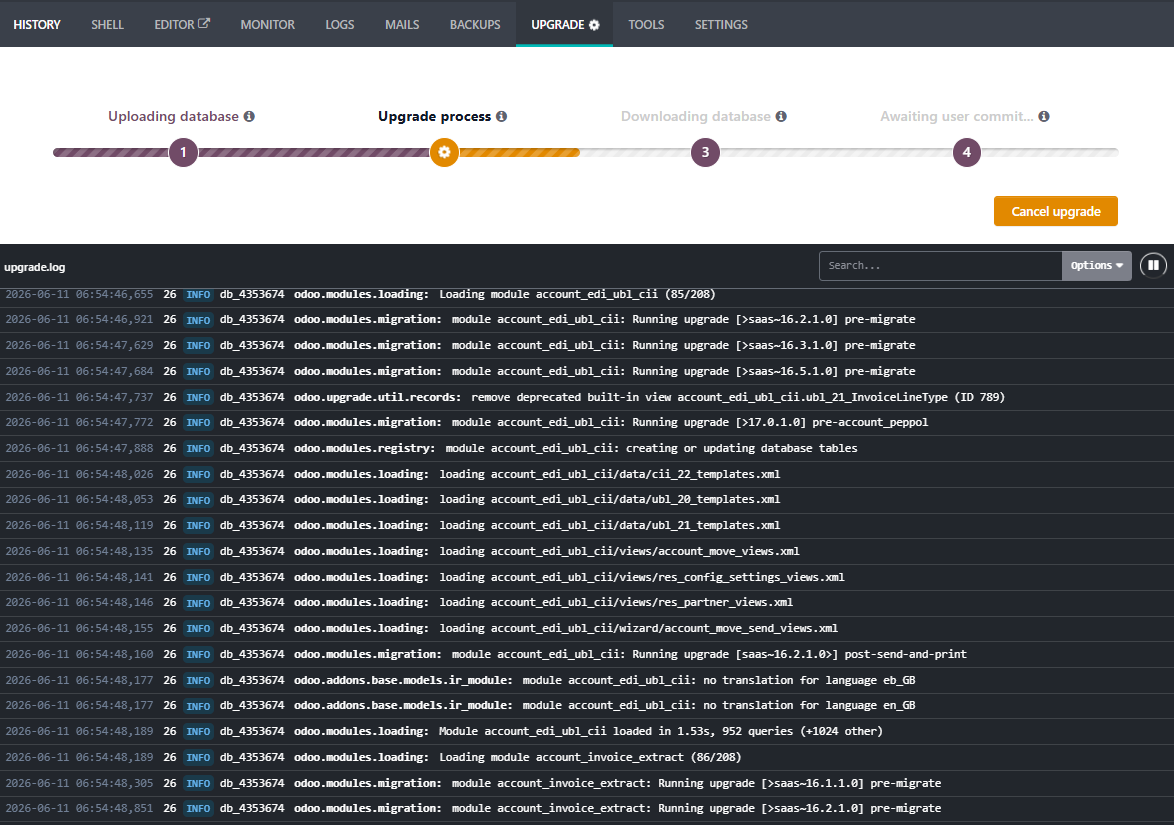
If the database needs to move across multiple major versions, the upgrade is handled progressively through the versions in between. For example, an upgrade from Odoo 16 to Odoo 19 is not treated as one big jump straight from the old version to the new one. The system still has to pass through the intermediate upgrade steps, which is one of the reasons older systems or systems with a larger version gap usually need more care.
At this stage, the custom modules are not the main focus yet. The first question is whether the standard Odoo database can be upgraded successfully. Once that part succeeds, the upgraded database is loaded back onto the staging branch and waits for the next part of the process.
The Awaiting User Commit Step
When the standard modules have been migrated successfully, the upgraded database enters the stage shown in Odoo.sh as Awaiting User Commit. In practice, this means Odoo has upgraded the standard database and is now waiting for the developer to push the upgraded custom modules to the staging branch.
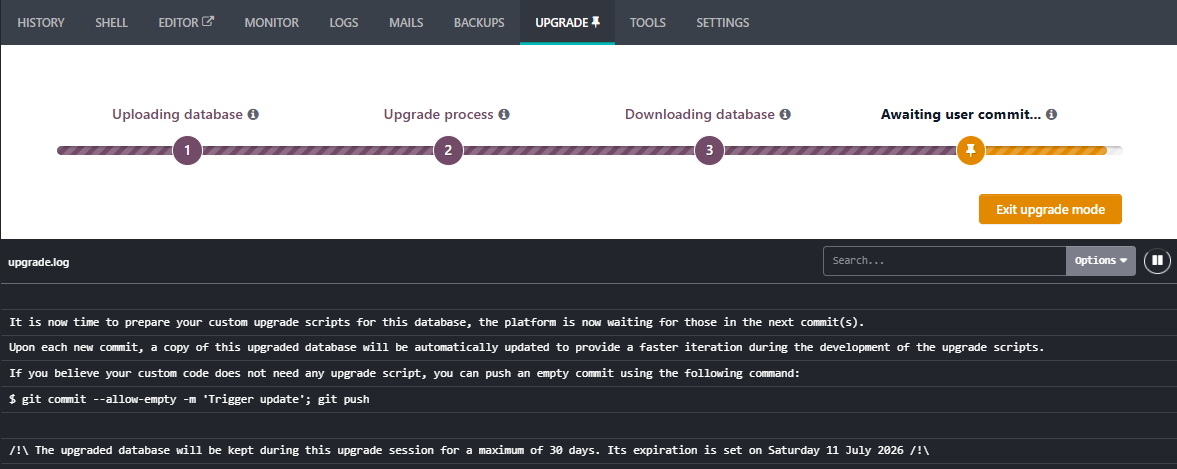
That developer commit triggers the last part of the upgrade process, where Odoo attempts to update the custom modules against the upgraded database. These custom modules should be first reviewed, outside Odoo.sh, so they can install on a demo instance of the new Odoo version before they are pushed into the upgraded staging database.
If the custom modules have not been prepared ahead of time, this step can quickly turn into a long debugging exercise. If they have been prepared properly, the first commit may still show issues, but at least the errors are usually focused around the migration itself rather than basic compatibility problems that could have been caught earlier.
Why Developer Time Is Still Needed
A common question from clients is why developer time is still required if Odoo.sh already handles the upgrade, and indeed, Odoo.sh genuinely does save a lot of time by automating the standard Odoo migration process.
The distinction is that Odoo.sh upgrades the standard Odoo modules and database structure, but it does not automatically rewrite custom modules, custom views, reports, integrations, server actions, or business-specific logic that has been added to the system over time.
Those custom elements still need to be reviewed before the upgrade, updated so they work on the target Odoo version, and then tested once the upgraded database is available on staging. If issues appear during the custom module migration, the developer then needs to review the logs, fix the problem, push again, and repeat that process until the upgraded system loads correctly.
So Odoo.sh does reduce the amount of manual migration work, and that saving should already be reflected in any migration quote, but it does not remove the need for development work entirely because the custom parts of the system are still specific to that client and need to be handled properly.
The Custom Module Upgrade Loop
One of the useful parts of the Odoo.sh process is that, once the standard upgrade has completed and you reach the Awaiting User Commit step, the staging database stays in a special upgrade mode where any push to staging will restart the custom module migration.
That means if there's any issues, the developer can fix it, push another commit, and Odoo.sh retries that last part of the migration without needing to rerun the full upgrade from the beginning each time.
In practice, this usually becomes a loop of pushing the upgraded custom modules, reviewing the upgrade logs, fixing Python errors, XML issues, view problems, report errors, or data migration problems, and then pushing again until the custom module upgrade completes successfully.
This stage can be quick on clean systems, but it can also take a while on older systems with years of customisation, inherited views, Studio changes, server actions, reports, and integrations. The process is still structured, but the quality and history of the customisation has a big impact on how smooth that final stage feels.
Using Upgrade Scripts
Sometimes updating the custom module code is enough on its own, but in other cases upgrade scripts are needed to prepare, clean, transform, or repair data and configuration as part of the migration.
An upgrade script is a Python file that runs during the module update process. Odoo supports different phases for those scripts, usually referred to as pre, post, and end scripts.
- Pre scripts run before the module is loaded
- Post scripts run after the module and its dependencies have been loaded and updated
- End scripts run after all modules have been loaded and updated for that version
The exact choice depends on what needs to happen. Some changes need to happen before the new module structure loads, some make more sense after the module has been updated, and some are safer at the end once the wider system has finished loading for that version.
For more technical detail, Odoo documents this in its upgrade scripts documentation. Odoo also provides an upgrade utils library, which contains helper functions specifically intended for upgrade scripts.
A Simple Trick: Remove Old Views
One common issue during upgrades is older view customisation, especially when a system is jumping across multiple versions and the original Odoo views have changed significantly.
A custom view may have worked perfectly well in the old version, but if it inherits from a part of the form that no longer exists, or if the standard view has been heavily restructured, that old customisation can prevent the module from upgrading cleanly.
In those cases, a practical solution can be to remove the old problematic view using a migration script and let the new version of the module recreate the correct view at the end of the upgrade process.
This may sound a bit scary, but it really is not. It is not the same as deleting customers, products, sale orders, invoices, stock moves, or other business data. When a view is removed, Odoo will recreate it at the end of the upgrade process as if it was a new view, nothing is lost.
This is not something that's required to do on every upgrade, but it is a useful tool when an old view has changed considerably between versions which is likely to trigger errors.
The First Review After the Upgrade Loads
Once the upgraded staging database opens successfully, the next step is not to assume the upgrade is finished. The first review should usually be quickly done by the developer, because the goal at this stage is to check that the system loads correctly and that the known custom functionality still behaves as expected.
A typical developer review includes checking that custom modules are installed and updated, opening key menus, forms, lists, kanbans, and wizards, testing custom buttons and backend actions, printing important PDF reports, checking scheduled actions and automated actions, testing known integrations where staging allows it, and reviewing logs for obvious errors.
This developer review is important, but it is not enough by itself. They can test what they know exists, test custom functions they worked on and the obvious menus, reports, and workflows, but they will not always know every daily business process, every workaround, every report shortcut, or every small operational habit that has built up in the system over time.
That is why user testing is not just a nice extra step. It is the part that confirms whether the upgraded system still works for the way the business actually uses Odoo.
Check the Upgrade Summary
After the upgrade, Odoo provides administrators with an upgrade summary in Discuss. This is easy to overlook, especially when the upgraded database appears to load normally, but it is worth reviewing carefully before the project moves too far into user testing.
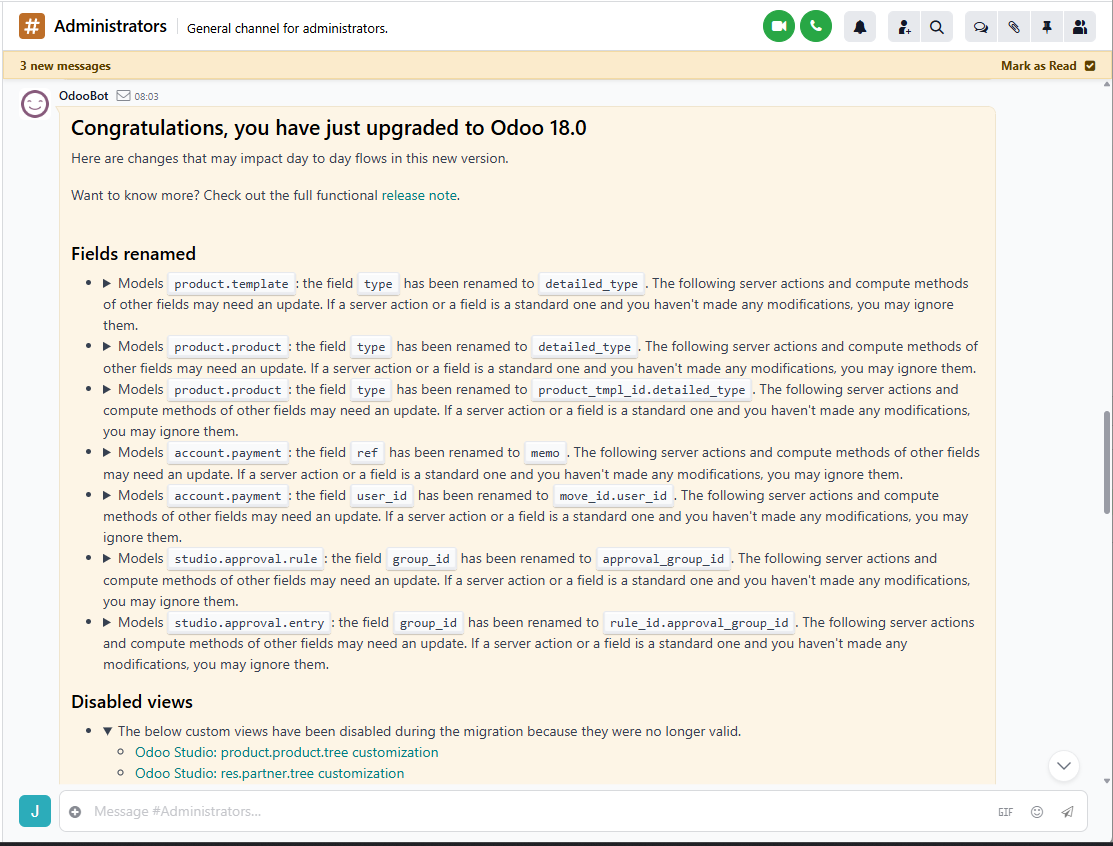
The most important parts are usually the warnings around disabled views, disabled automated actions, changed fields, or configuration changes that may directly affect the upgraded system.
If a view has been disabled, a form or menu may not display as expected. If an automated action has been disabled, a workflow that used to run automatically may silently stop. These are exactly the kind of issues that should be reviewed on staging before go-live rather than discovered by users after the production upgrade.
Power User Testing
Once the development review is complete, power users should test their main business flows on the upgraded staging system. This is where the upgrade becomes less technical and more operational, because the question is no longer only whether the database loads but whether people can still do their day-to-day work properly.
What is important to keep in mind is that the live system will essentially match what is being tested on staging, so if users can complete their flows on staging without issues, the live upgrade should normally be much safer.
A useful power-user checklist may include:
- Create and confirm a quotation
- Process a delivery or receipt
- Create and validate an invoice
- Test purchase flows
- Test manufacturing or field service flows
- Print key customer and internal documents
- Review important reports and dashboards
- Check any portal or website flows used by customers
- Confirm critical daily tasks still make sense in the new version
Training may also be useful at this stage, especially if the upgrade spans several versions. Most of the time, new Odoo features do not magically turn on and change everything overnight, but menus move, buttons change, views are redesigned, and some workflows can feel different enough that users need time to adjust.
Integrations and Live Connections
Integrations need special attention during upgrade testing because some of them can be tested safely on staging, while others cannot be tested fully without touching live systems, payment providers, shipping platforms, websites, marketplaces, or third-party APIs.
In those cases, the best approach is to review as much as possible ahead of go-live, including credentials, configuration, API endpoints, expected payloads, scheduled actions, changed fields or models used by the integration, and a clear go-live test plan for the parts that can only be confirmed properly once the upgraded production system is live.
Some issues only appear when the upgraded system connects to real production services, which is why it is important to have technical resources available during and immediately after go-live rather than treating the upgrade as finished the moment the database comes back online.
Timing and Go-Live Planning
Upgrade timing matters because the production system will be unavailable while the live upgrade runs. For many businesses, a sensible approach is to schedule the upgrade for late Friday afternoon or Friday evening, once staff have finished their main work for the week and the business can tolerate a few hours of downtime more easily.
The live upgrade may bring the system down for a few hours, and once it is back online the technical team still needs time to do an initial review, apply any required manual fixes, check the obvious areas, and confirm the system is ready for power-user testing.
If power users can log in during the weekend and test the main flows, any critical issue can be reviewed before staff come back on Monday morning. This does not remove all risk, but it gives the project a much better safety window than upgrading during normal working hours and hoping the first real test happens while everyone is already trying to work.
Consider Running a Staging Refresh Before Go-Live
If the upgrade project takes a long time, it is usually worth running another upgrade test closer to go-live. The reason is simple: the live system keeps changing.
New records are created, users continue working, modules may change, configuration may be adjusted, and integrations keep moving data around. A staging upgrade that looked good months ago is still useful, but it may no longer represent the exact state of the production system.
This is one of the areas where Odoo migrations can go wrong if the project loses momentum or if too much time passes between the successful staging test and the production upgrade. I discuss this in more detail, along with other common points of failure, in Why Odoo Migrations Fail.
Rollback on Critical Issues
A rollback option is reassuring, and it matters. If something catastrophic happens during a live upgrade, there should be a way back to a safe pre-upgrade position, either through Odoo.sh handling the failed upgrade safely or through restoring the backup created before the upgrade.
That safety net is important, but rollback should be treated as an emergency option rather than the normal way to handle manageable issues. If a report layout needs adjusting, a button needs fixing, or a scheduled action needs review, the usual answer is to fix the issue rather than undo the entire upgrade.
Rollback is for serious situations where the upgraded system cannot safely be used, not for the normal cleanup and small fixes that can happen after any major system change.
A Practical Upgrade Checklist
A good Odoo.sh upgrade plan does not need to be overcomplicated, but it should cover the main areas that usually decide whether the upgrade feels controlled or stressful.
Developer Checklist
- Prepare custom modules for the target Odoo version
- Check that custom modules install on a fresh database
- Launch the Odoo.sh staging upgrade
- Push upgraded custom modules when the staging database is awaiting commit
- Review upgrade logs and fix migration errors
- Use upgrade scripts where data or configuration changes are required
- Review important views, reports, actions, and dashboards
- Check the Discuss upgrade summary for disabled views and actions
- Test known custom functionality and integrations where possible
Power User Checklist
- Test the main daily workflows on staging
- Compare important screens with the current production system
- Print key documents and check layouts
- Review reports, dashboards, and saved filters
- Check any changed menus, buttons, or navigation patterns
- Confirm critical flows before go-live approval
- Reserve time after the live upgrade to test again before normal staff usage resumes
Final Thoughts
Odoo.sh makes the upgrade process much more structured than a fully manual migration, because it handles the standard Odoo module upgrade, gives you a staging flow for the custom module update, and makes it much easier to iterate when migration errors appear during that last custom module step, but that structure should not be confused with the upgrade being automatic from a business point of view.
The technical process can get the database onto the new version, and in many cases Odoo.sh saves a significant amount of time compared to other upgrade approaches, but developers still need to prepare the custom modules, review migration errors, check reports and views, and make sure the system behaves properly once the upgraded database opens.
Administrators also need to review the upgrade summary, especially if Odoo has disabled views, automated actions, or configuration that may affect the upgraded system, and power users need to test the flows they actually use day to day, because no developer can realistically know every internal process, every report shortcut, every exception case, or every small operational habit that has built up in the system over time.
That is really the main point of an Odoo.sh upgrade: the platform gives the upgrade a clear technical structure, but the business still needs to validate that the upgraded system works for the way people actually use Odoo.