

Over the last few months, we have received a number of urgent support tickets from customers running fairly standard Odoo.sh setups. In each case, automated scripts appeared to be scanning the public Odoo.sh website for known vulnerabilities while also repeatedly crawling publicly accessible pages.
This traffic can quickly become significant. Hundreds of requests per second may arrive from different IP addresses around the world and on an Odoo.sh instance with only a small number of workers that is enough to overwhelm the server.
The effect for the customer is immediate: Odoo becomes slow, users begin seeing timeouts and error messages and eventually they may lose access the system completely.
Restarting the Odoo.sh instance can help briefly, but in the cases I have seen the traffic simply returned and the server slowed down again a few minutes later.
Odoo Support's recommendation was to move access to the customer's own domain, place that domain behind Cloudflare, and disable the default Odoo.sh URL so that it could no longer be used to bypass that protection.
That sounds like a daunting change, but the basic setup is actually quite simple and can be done using Cloudflare's Free plan.
What Does Cloudflare Add?
Normally, visitors connect to the server hosting your website more directly. Putting Cloudflare in front of Odoo introduces an additional layer:
Cloudflare acts as a reverse proxy. Requests reach Cloudflare first, giving it an opportunity to identify and filter unwanted traffic before legitimate requests are forwarded to Odoo.
Cloudflare provides DDoS protection on its Free plan and can also help deal with known malicious traffic and automated bots.
1. Create a Cloudflare Account and Add Your Domain
Start by creating a free Cloudflare account and adding the domain you intend to use with Odoo. Enter the root domain, in my case I used my blog domain's:
bobbybernier.co.uk
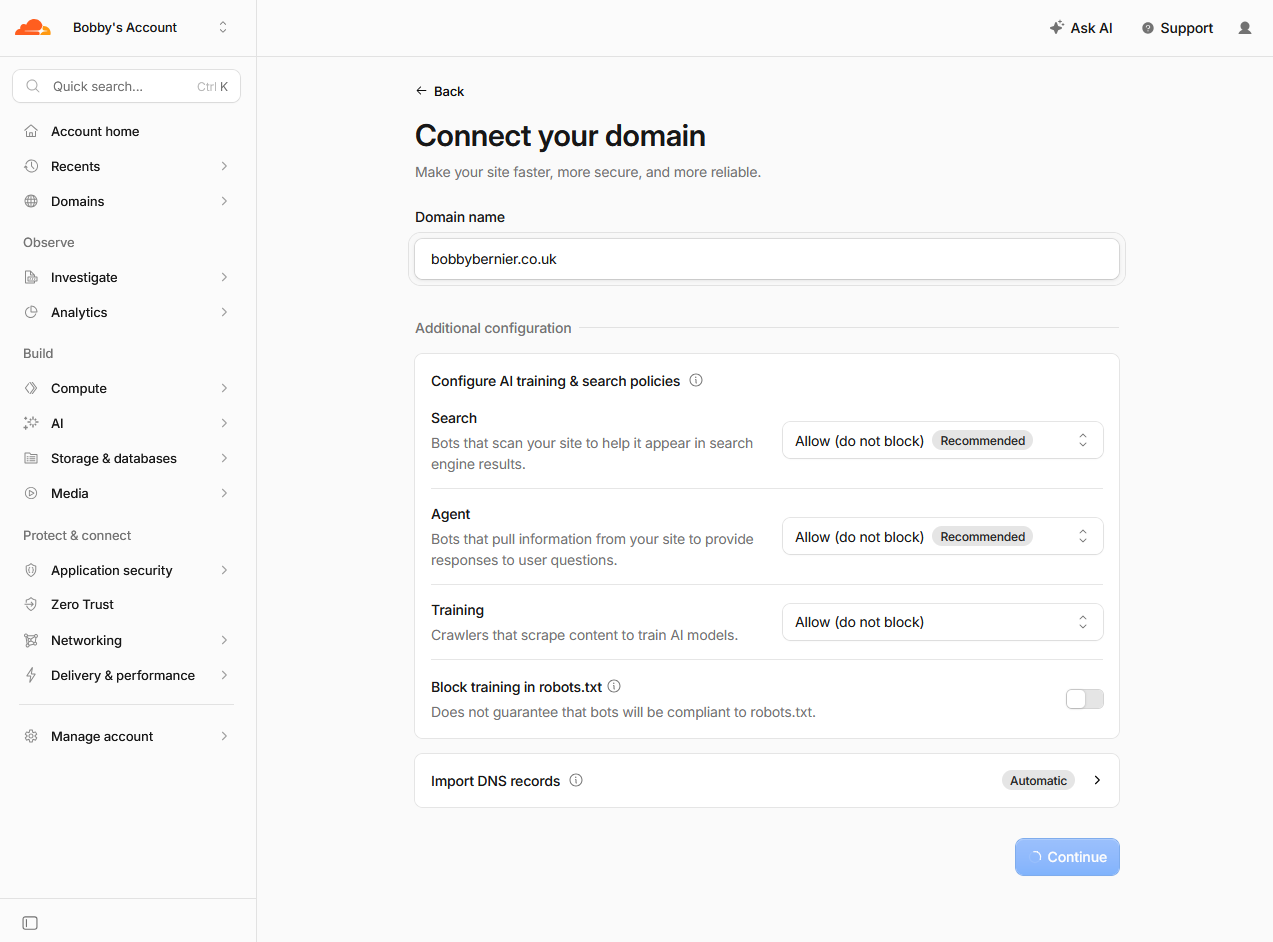
Cloudflare may also ask how you want it to handle search engines, AI agents and AI training crawlers. These settings aren't specific to Odoo and can be configured according to your own requirements.
2. Choose the Free Cloudflare Plan
Cloudflare will ask which plan you want to use.
For the setup described in this article, select Free.
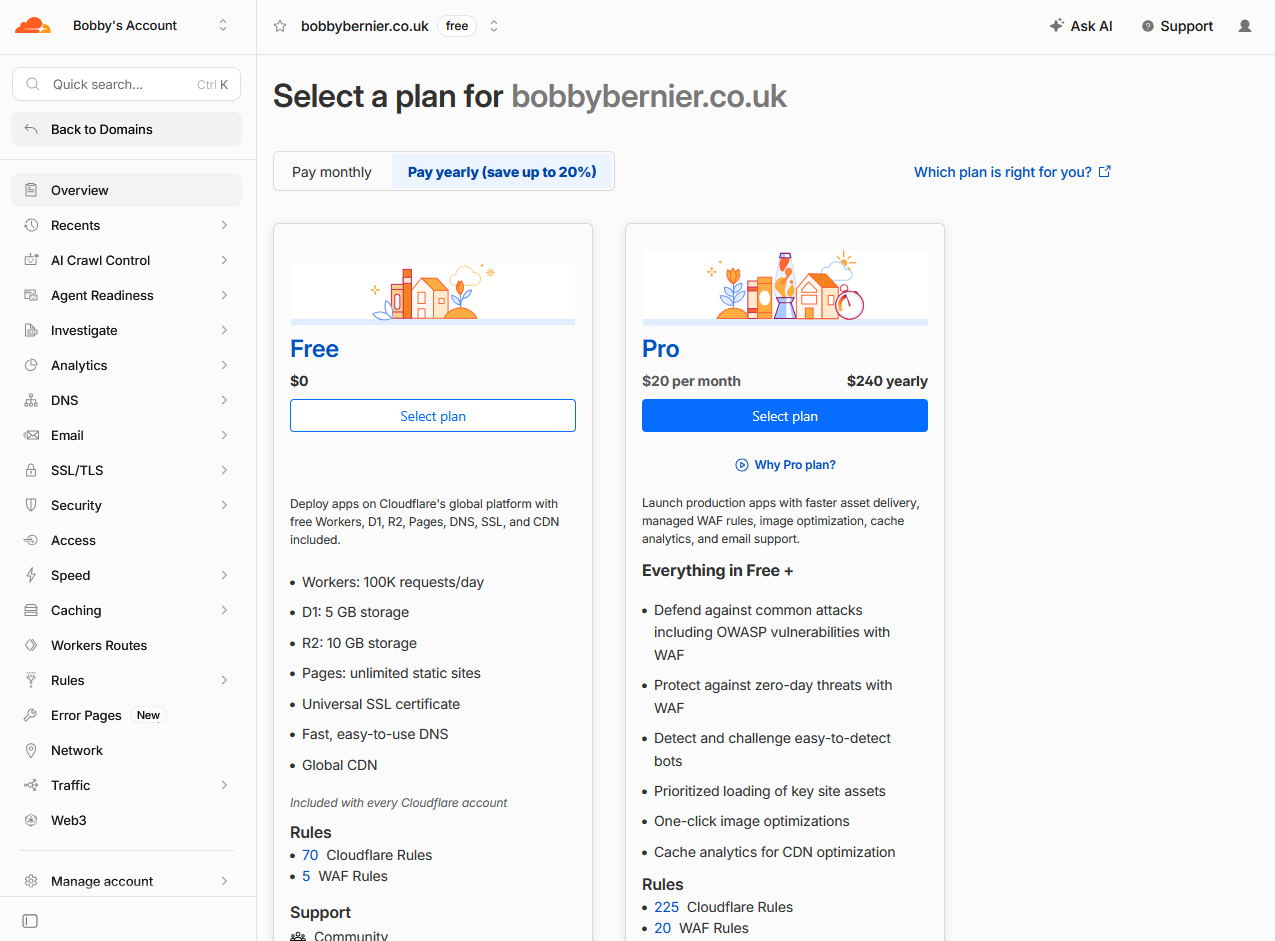
The paid plans contain additional security, WAF and performance functionality, but they aren't required simply to place the Odoo website behind Cloudflare.
3. Check Your Existing DNS Records
Cloudflare will attempt to discover and import the DNS records that already exist for your domain. Do not assume that everything has been detected correctly. Compare the records shown by Cloudflare with the records at your existing DNS provider before proceeding.
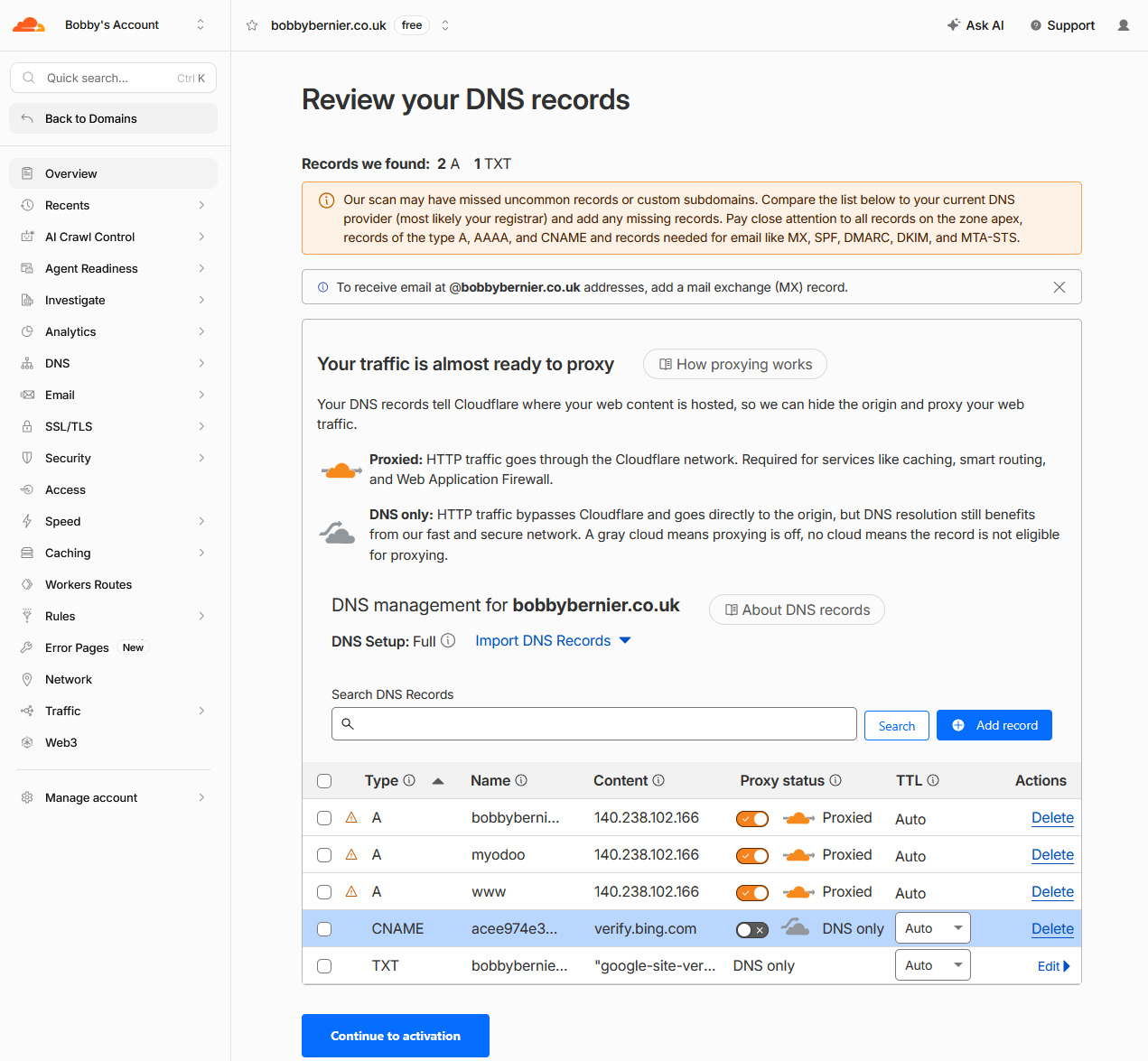
Pay attention to records used for:
- Email and MX records
- SPF
- DKIM
- DMARC
- Domain verification records
- Any existing subdomains
Once the nameserver change is complete, Cloudflare will become responsible for answering DNS queries for the domain, so missing records can affect more than just the website.
4. Change Your Nameservers
Cloudflare will assign two nameservers to your domain.
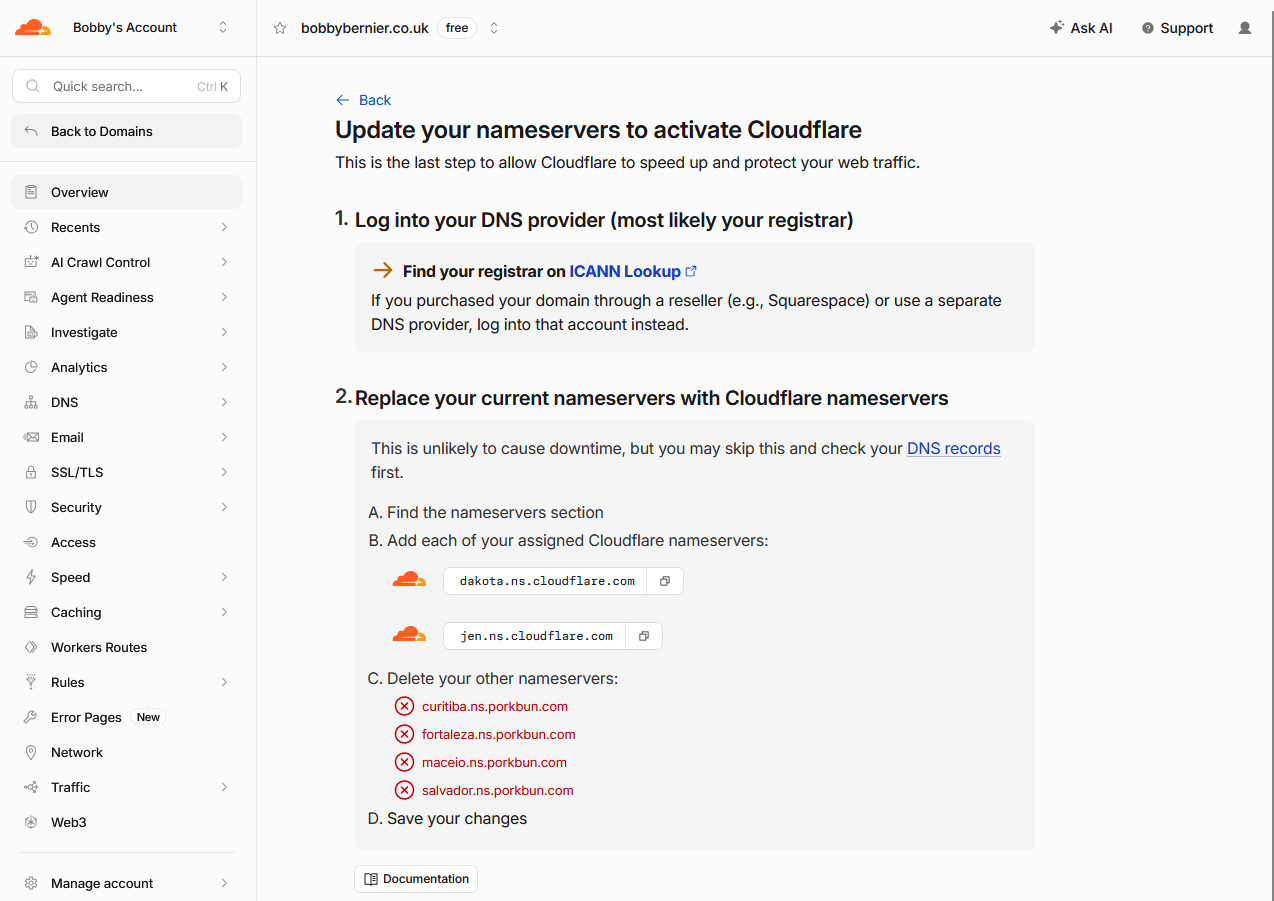
The names shown in the screenshot above are specific to my domain. Cloudflare will provide your own pair. Log into the registrar where your domain is registered and replace the existing nameservers with the two provided by Cloudflare.
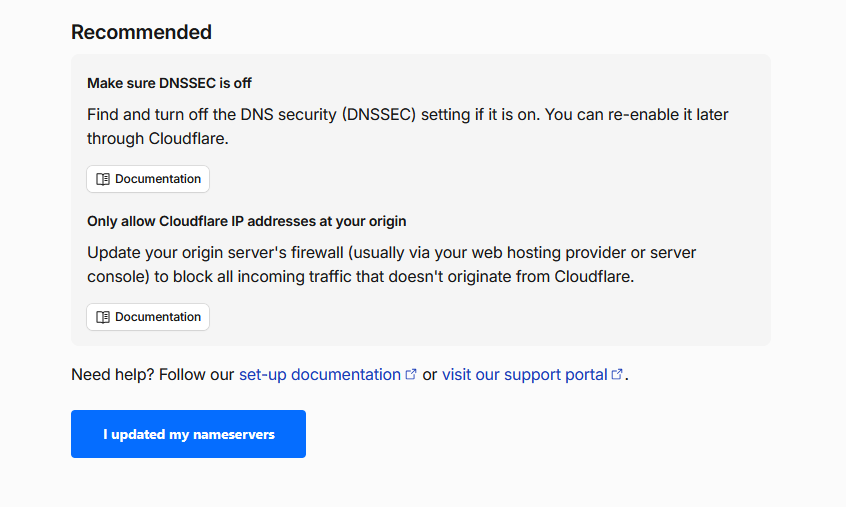
Cloudflare also recommends checking whether DNSSEC is enabled before changing nameservers and turning it off during the transfer. DNSSEC can be enabled again through Cloudflare once the domain is active.
5. Wait for the Nameserver Change
After saving the changes at your registrar, return to Cloudflare and confirm that you have updated the nameservers.
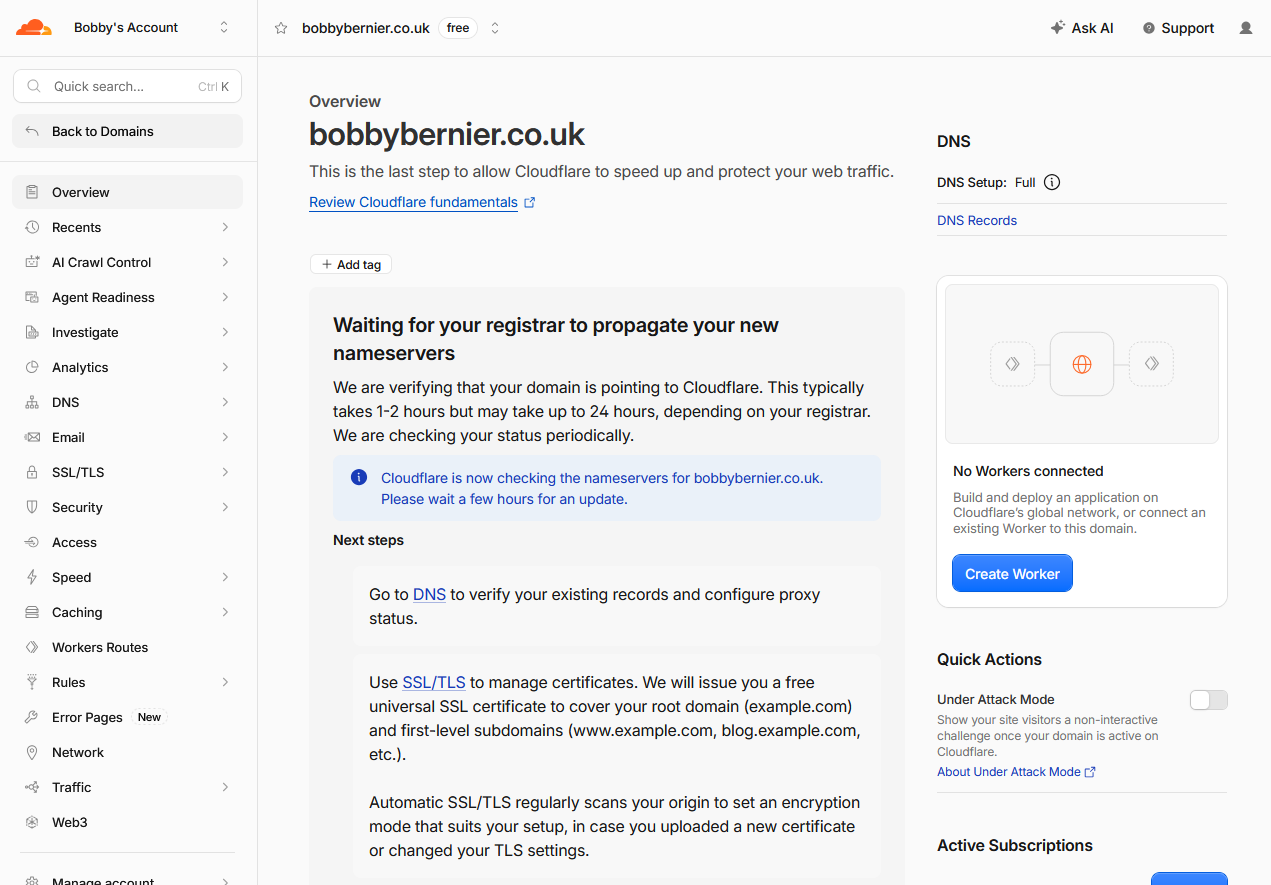
This can happen fairly quickly, although DNS changes can take longer depending on the registrar and existing DNS caches. In my case, rather than the suggested 1-2 hours it took only 10 minutes.
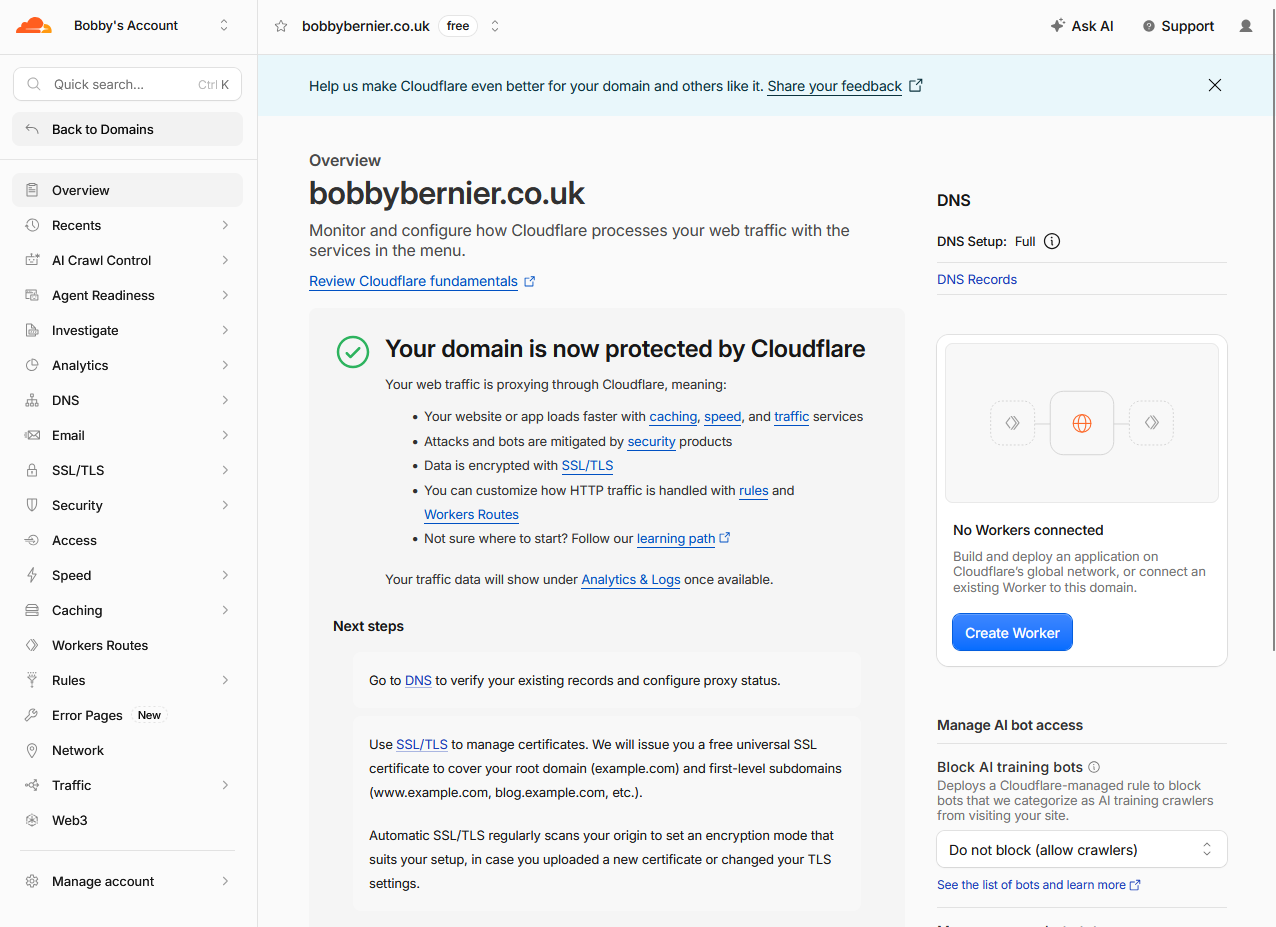
Once Cloudflare detects the change, the domain will become active.
6. Point Your Custom Domain to Odoo.sh
The next step is to create the DNS record that sends your custom domain to Odoo.sh.
Odoo.sh custom domains use a CNAME pointing towards the production database's *.odoo.com address. For example:
www.example.com → example.odoo.com
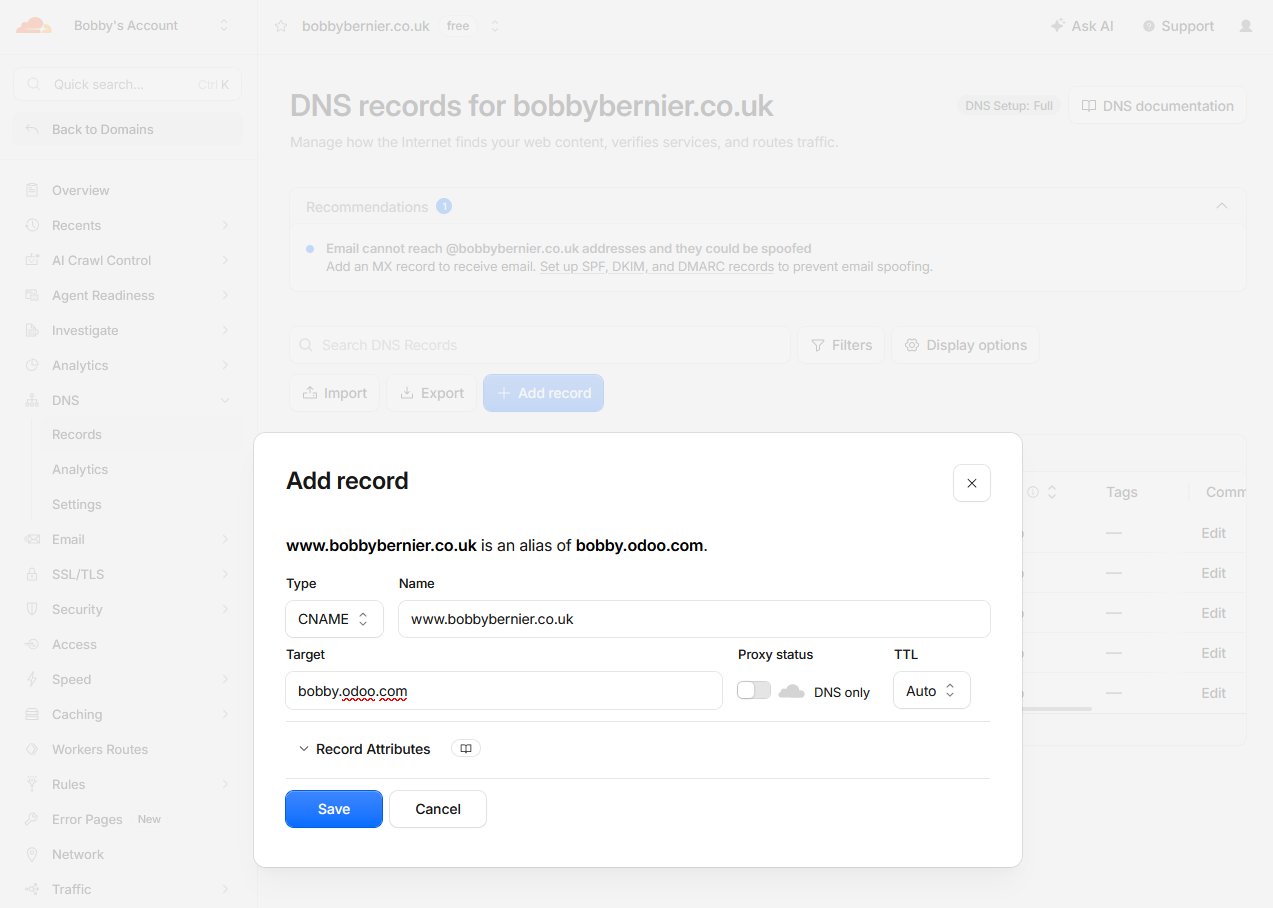
I prefer to initially leave the record Proxy status as DNS only while setting up the custom domain and confirming that Odoo can provision its SSL certificate.
Add the same hostname to the Custom Domains section of the production branch in Odoo.sh.
Once the custom URL is working correctly over HTTPS, return to Cloudflare and change the record from DNS only to Proxied.
This is the important part. A grey-cloud DNS only record resolves through Cloudflare's DNS service, but web traffic still goes directly to the target. The orange Proxied setting is what places Cloudflare between the visitor and Odoo.
7. Handle the Root Domain
You may also want someone entering example.com to reach the same website as www.example.com
In Cloudflare, the root domain can be configured to point towards the www hostname.
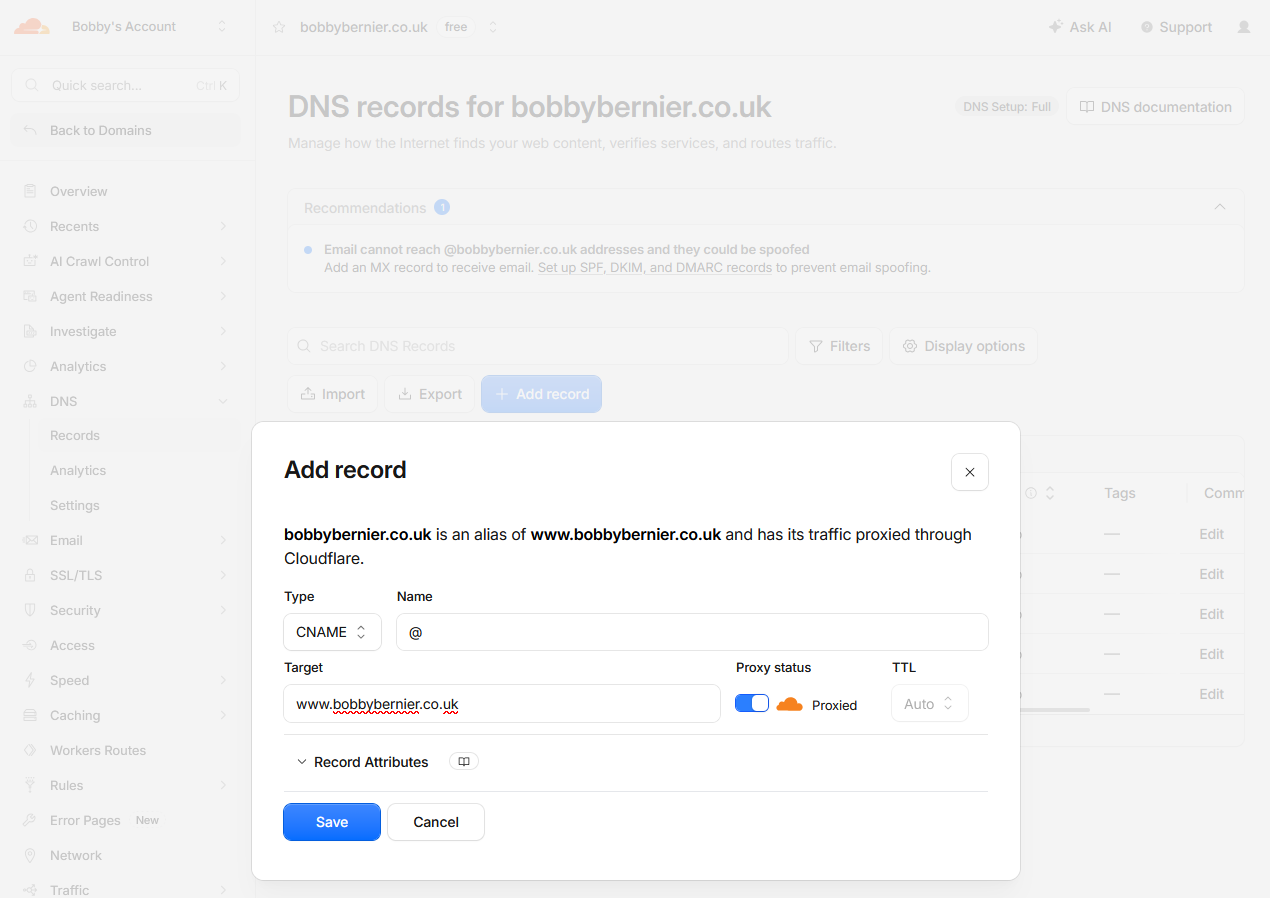
You will notice we are not relying on a fixed IP address for Odoo.sh. The underlying infrastructure can change, which is why the custom domain should ultimately follow Odoo's hostname rather than a manually maintained server IP.
8. Don't Leave a Route Around Cloudflare
This is the part that is particularly relevant to the incidents that prompted me to write this article. Imagine your customers access Odoo through:
https://www.example.com
Following this article advice, that address is now protected by Cloudflare but, if the production database is still freely accessible through:
https://example.odoo.com
...then anyone who uses that original Odoo address can still bypass Cloudflare.
In the incidents I've dealt with, this mattered because the unwanted automated traffic was targeting the *.odoo.com address.
To avoid this, once the Cloudflare-protected custom domain has been tested, the original Odoo address needs to be turned off from the Odoo.sh project settings. If you are unsure how to do that, please ask your Odoo partner.
What Happens if Cloudflare Goes Down?
By putting another service in front of Odoo, you introduce a dependency. If Cloudflare has a major outage affecting its proxy network, a perfectly healthy Odoo.sh database may temporarily become unreachable through the custom domain.
This isn't purely theoretical, while rare, Cloudflare did experience a significant outage on November 18, 2025 which affected services across its network. Cloudflare published a detailed explanation of the incident: Cloudflare outage on November 18, 2025.
I had to deal with this for customers before, and a simple emergency option is to temporarily restore direct access to the *.odoo.com address until Cloudflare recovers.
Naturally, doing that also temporarily removes the protection that Cloudflare was providing, so you'll want to turn it back off once service is restored.
Is It Worth Putting Odoo.sh Behind Cloudflare?
For an Odoo.sh system that has never experienced abusive traffic, Cloudflare may sit quietly in front of the system and rarely have anything to do.
The reason I like having this configuration in place is that setting it up before you have a problem is considerably easier than changing DNS and investigating traffic while users are already complaining that Odoo is timing out and unreachable.
Cloudflare is not a replacement for securing Odoo itself, most of that is handled by the Odoo.sh team directly with your automatic updates, and it does not guarantee that your Odoo instance can never be overwhelmed, but it's a very useful tool to enable to reduce the risks.