
If you regularly import products or have additional costs such as freight, customs duties or insurance, recording the supplier's purchase price is not enough; those extra expenses need to be reflected somewhere if you want accurate inventory valuation and a true picture of your cost of goods sold (COGS).
This is exactly what landed costs are designed to solve, and Odoo includes built-in support for allocating these across the products you've received, updating both your inventory valuation and the accounting entries behind it.
In this guide, we'll look at how landed costs work in Odoo 19.0, how to configure and apply them correctly, and one important limitation that often catches businesses by surprise when using automatic reordering rules.
What are landed costs?
A landed cost is any additional expense incurred to bring goods from your supplier to your warehouse beyond the purchase price itself. Rather than treating these costs as regular expenses, they can be allocated across the products that were received so your inventory reflects its true value.
Common examples include:
- Freight and shipping charges
- Import duties and customs fees
- Insurance during transport
- Brokerage or handling charges
- Other import-related costs
Without landed costs, inventory is often undervalued and profit margins appear higher than they really are. Allocating these costs correctly gives a much more accurate picture of what your stock has actually cost the business.
How Odoo handles landed costs
Odoo allows landed costs to be added after goods have been received by allocating additional expenses across the products on a completed receipt. Once validated, the inventory valuation is updated automatically and the corresponding accounting entries are created using your configured landed cost journal.
Odoo supports the common allocation methods businesses typically need, allowing costs to be distributed based on factors such as quantity, value, weight or volume, depending on how you want freight or import charges to be apportioned.
Setting up landed costs in Odoo
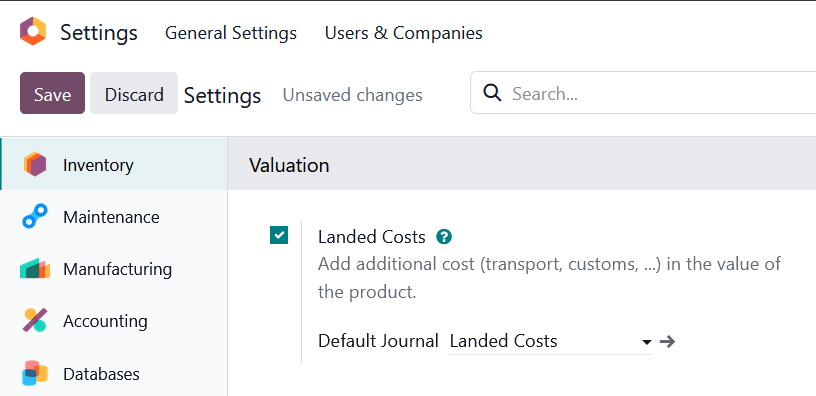
In order to use landed costs, there are a few configurations to set. In the Inventory settings, enable the Landed Costs feature and choose the journal that should be used for the accounting entries created when landed costs are validated.
The next step is one that often surprises people the first time they configure landed costs in Odoo. Rather than selecting an existing expense account or service directly on the vendor bill, Odoo requires you to create dedicated service products that represent each type of landed cost.
For example, you might create products such as International Freight, Import Duty or Customs Clearance. These products can then be added to vendor bills just like any other purchased service.
When creating these products, make sure that:
- The product type is set to Service.
- The Is a Landed Cost option is enabled on the Purchase tab.
- An appropriate split method is selected for how the cost should be distributed across the received products.
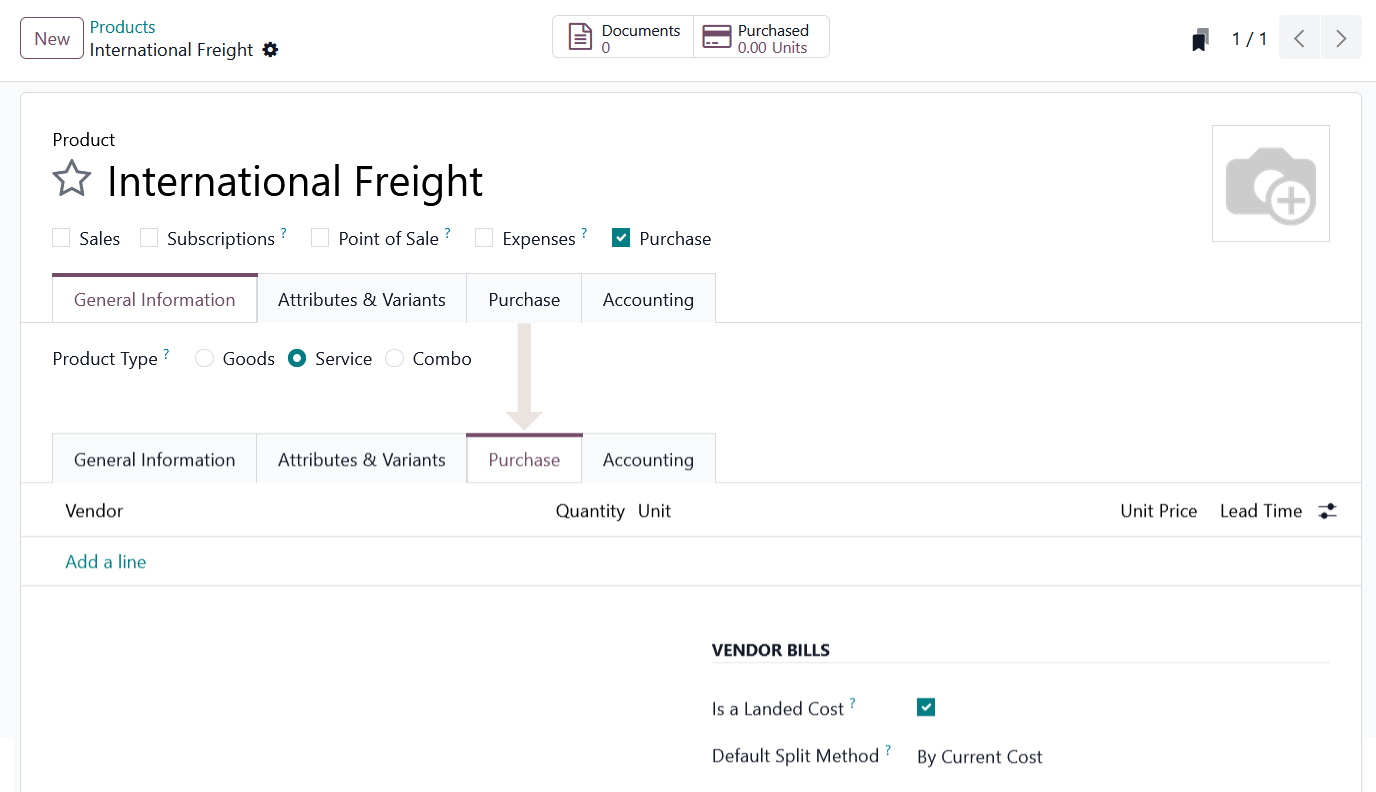
Once these products have been created, they can be used on any future vendor bills to apply these charges when they occur.
Applying landed costs from a vendor bill
Once your products have been received and you've received the supplier's invoice for the additional charges, applying the landed cost is a straightforward process.
On the vendor bill, add one or more of your landed cost service products alongside the normal bill lines. This could be a freight charge, import duty or any other cost you've configured as a landed cost product.
In this example we are including the landed costs on the same vendor bill. In practice, landed costs can just as easily come from separate bills, but the process in Odoo remains the same.
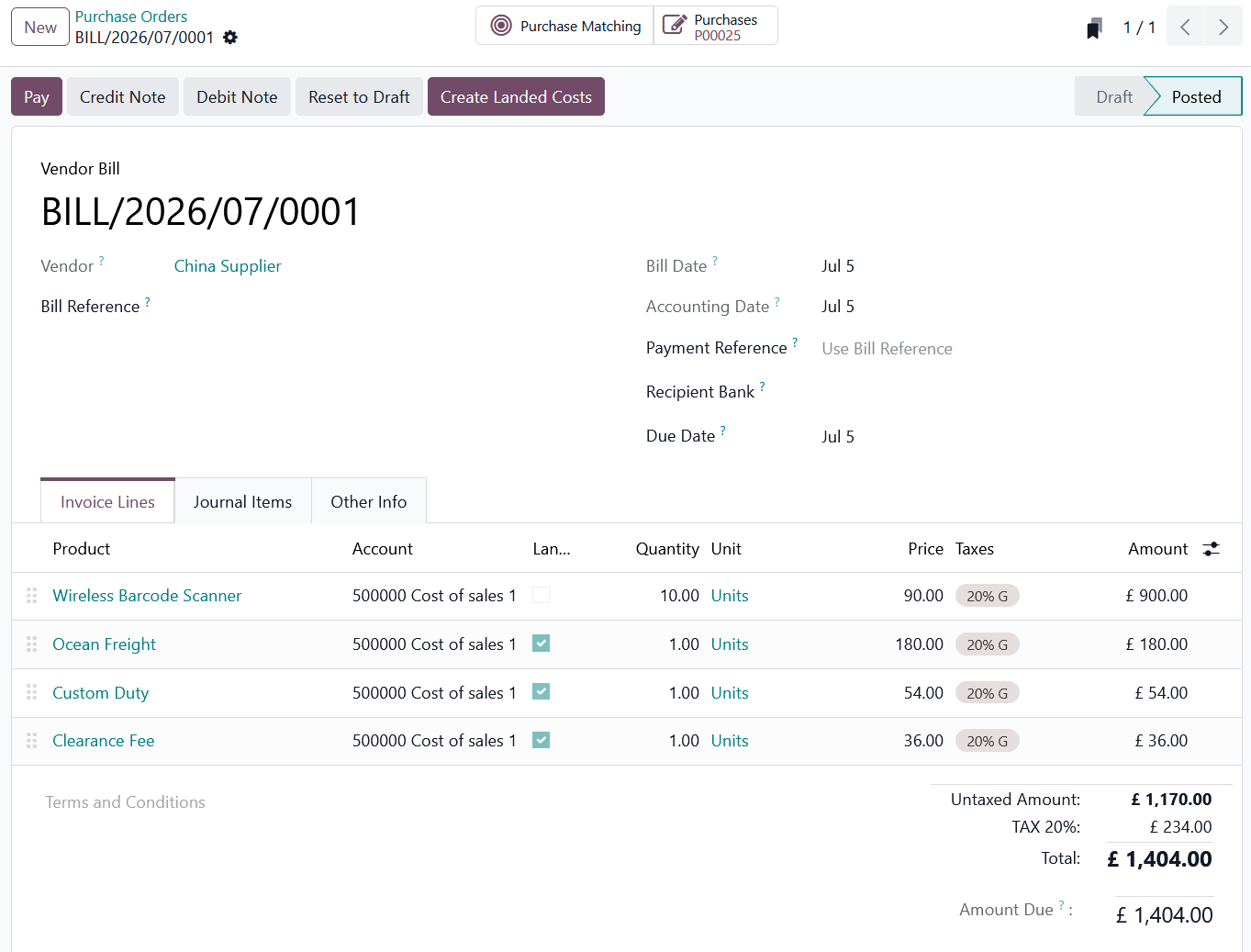
Once the vendor bill is complete, click Create Landed Costs at the top of the page. Odoo creates a new landed cost record, links it to this vendor bill and allows you to select which validated receipts (the goods in transfer) should receive the additional cost.
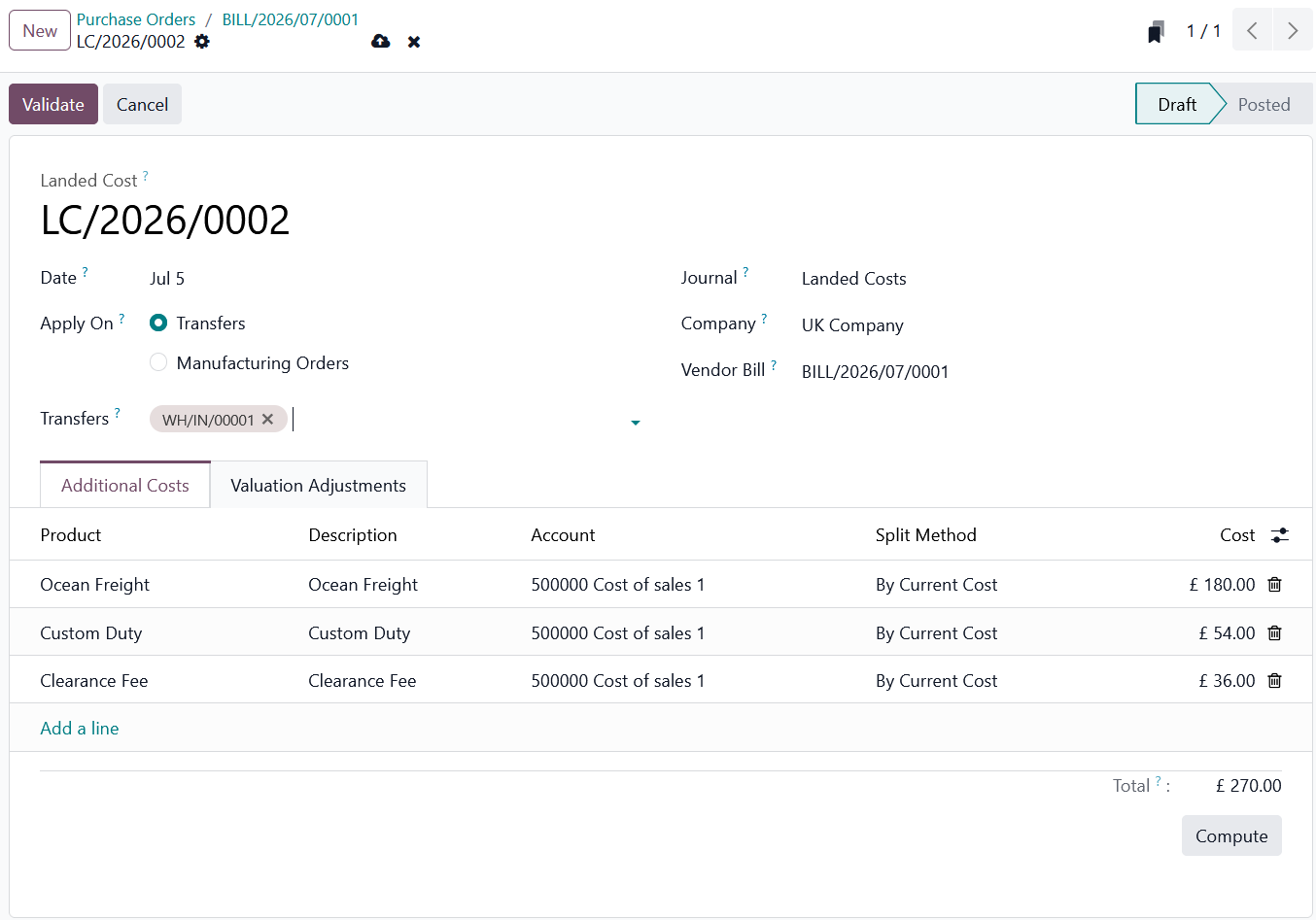
Clicking Compute applies the landed cost across the products on the selected receipts using the split method selected. Before validating it's worth reviewing the Valuation Adjustments tab and confirm the allocation looks as expected.
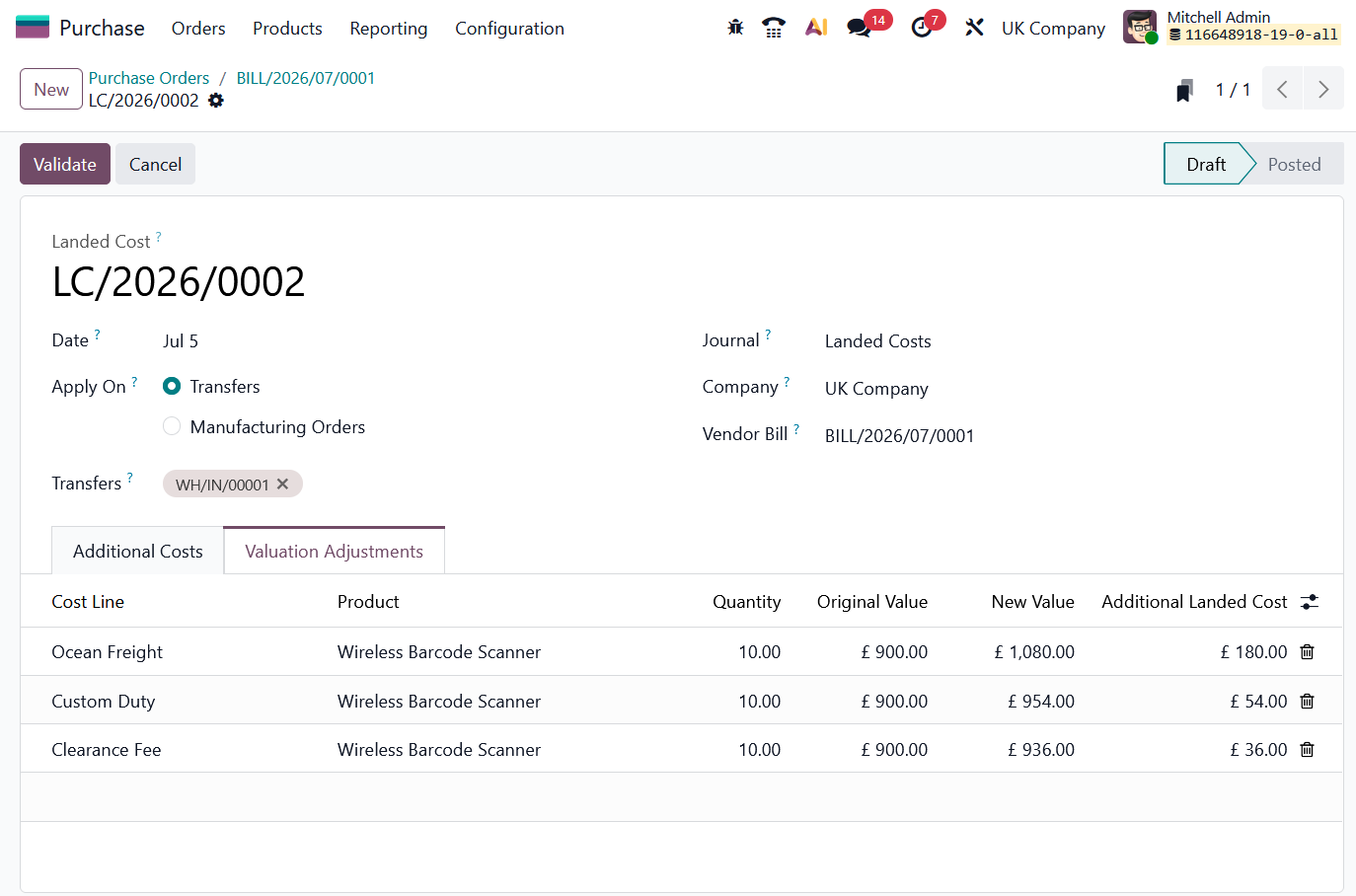
Once you're happy with the allocation, validate the landed cost. Odoo updates the inventory valuation of the affected products and creates the corresponding accounting entries automatically using the journal configured during setup.
Can this be automated?
Right now in Odoo 19.0, you have to manually find and select the incoming transfer that matches your vendor bill, even if Odoo knows what PO (and so, its related transfer) is linked to the vendor bill. The good news is that this will be automatically filled in with Odoo 20.0!
In some businesses, landed costs consist mostly of shipping fees and are included in the vendor bill they receive. There's no reason your team should have to repeat the same steps for every vendor bill.
Automatically creating and allocating landed costs as part of the purchasing workflow is a common customisation that an experienced Odoo partner can implement. It removes the need to manually work through the entire landed cost workflow on every vendor bill.
What landed costs don't do
One misconception I come across quite often is that once landed costs have been applied, Odoo will automatically take them into account when deciding which supplier to purchase from in the future.
Unfortunately... that's not a feature of landed costs in Odoo.
Landed costs are only used to adjust your inventory valuation and generate the correct accounting entries. They are not considered by reordering rules or supplier selection, when Odoo automatically creates a Request for Quotation, it only compares the prices defined on the supplier pricelists of the product to be purchased.
Keeping our earlier vendor bill example for 10x Wireless Barcode Scanners:
| Supplier | Goods | Landed Costs | Actual Cost |
|---|---|---|---|
| China Supplier | £900 | £270 | £1170 |
| UK Supplier | £1100 | £25 | £1125 |
In this example, Odoo would still automatically favour the China Supplier because it only sees the £900 purchase price. The additional £270 of landed costs has no influence over future purchasing decisions, even though the UK Supplier is actually the cheaper option overall.
If you want a reordering rule to purchase from a different supplier, you should specify the supplier on the reordering rule directly. Odoo shows the supplier it will automatically select in grey, making it easy to see which vendor will be used if nothing is provided.
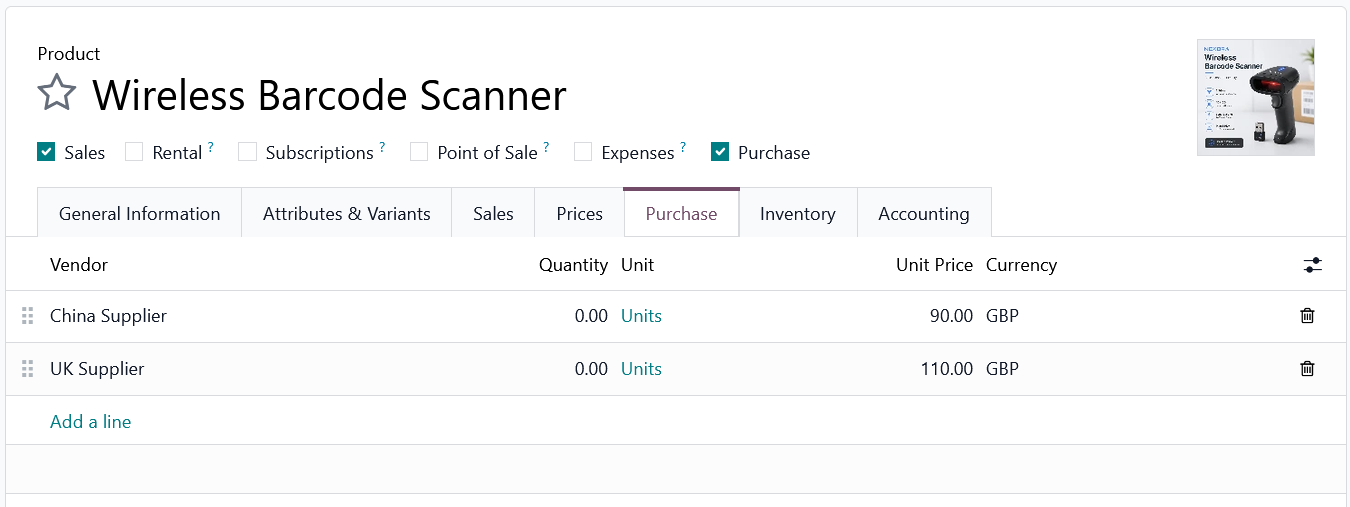
A second point that's worth mentioning is that you'll still find older tutorials recommending that you simply drag suppliers up or down on the supplier pricelist to prioritise which vendor Odoo should use. While this was true in older versions of Odoo, it is no longer the case in Odoo 19.
As of Odoo 19.0, the order of the supplier pricelist lines is purely visual. Odoo automatically evaluates the available supplier prices and selects the lowest matching price when a reordering rule generates a Request for Quotation. Simply moving a supplier to the top of the list won't change that behaviour anymore.
An alternative to forcing a supplier on the reordering rule is to set a minimum order quantity on supplier pricelists that have low unit prices but high landed costs, so that if the system needs to reorder only a few items, it will skip that entry.
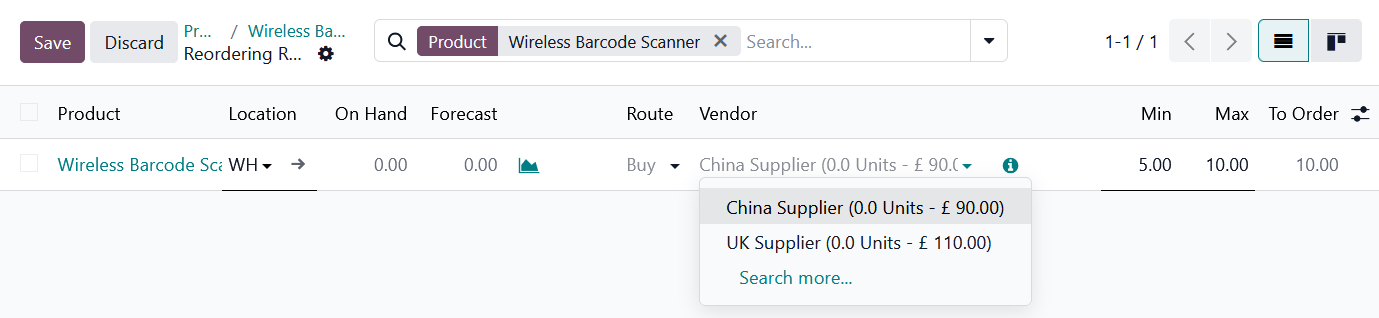
This doesn't mean landed costs aren't useful, they remain essential for accurate stock valuation and financial reporting. It's just that as of Odoo 19.0, they don't feed back into the system's purchasing logic so the configuration of supplier pricelists and reordering rules should still be reviewed with the total cost of procurement in mind.
Reviewing landed costs
Once landed costs have been validated, it's often useful to review how they've affected your inventory valuation. One of the easiest places to do this is through Inventory → Reporting → Stock.
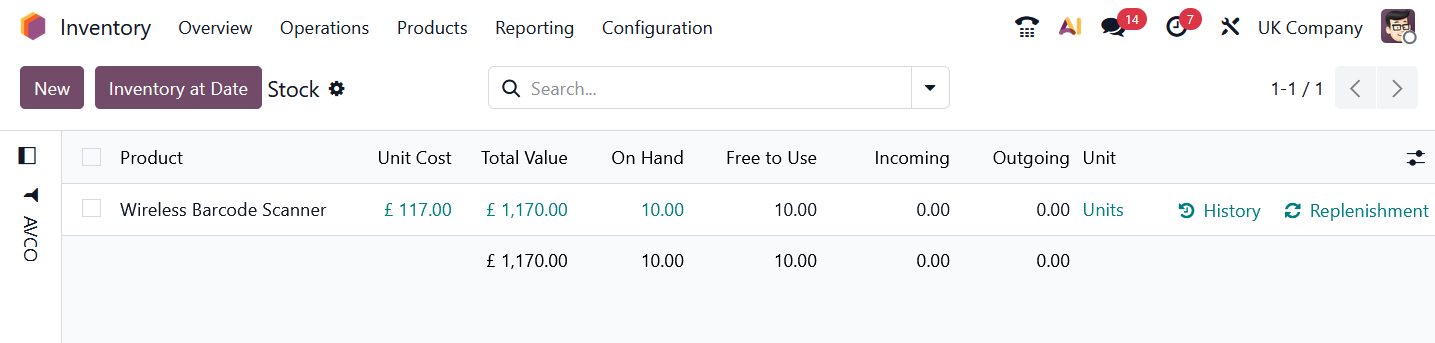
From this report, clicking on the unit cost opens the product's cost history. This provides a detailed breakdown of every valuation change along with a Justification column explaining exactly why the cost changed.
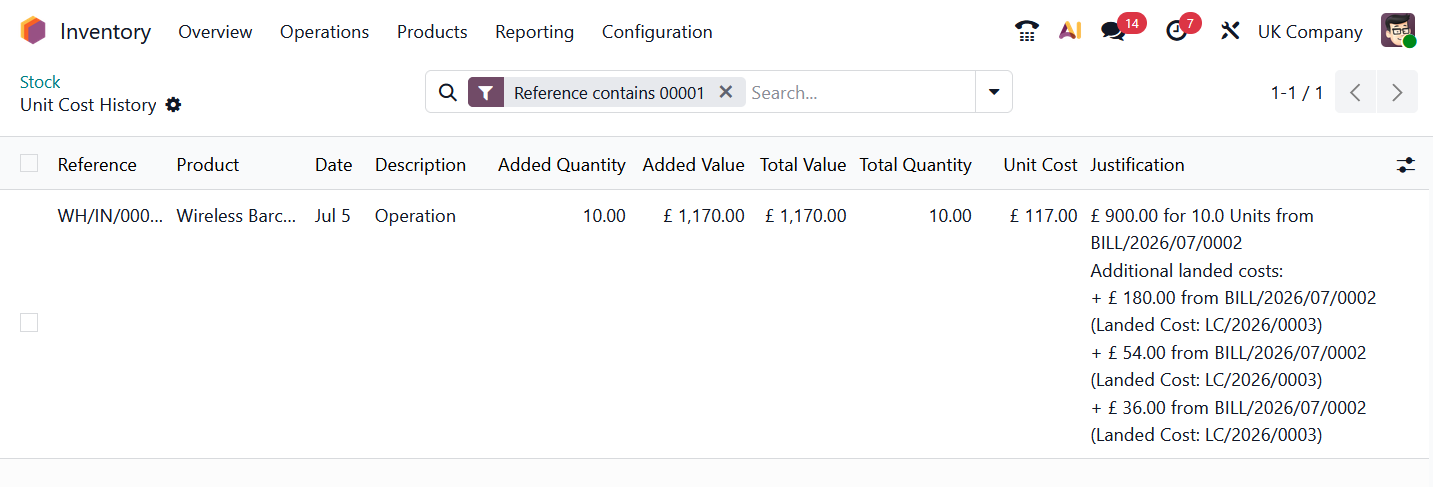
This report is useful when investigating why a product's valuation has changed over time or verifying that landed costs have been allocated correctly.
One limitation, however, is that the report doesn't include the supplier associated with each purchase. For businesses importing goods from multiple vendors, it can be difficult to analyse landed costs by supplier without opening each transfer in another window.
This is another area where a small customisation can make a significant difference. Adding supplier information to the report makes it much easier to review procurement costs, compare vendors and understand how landed costs are affecting inventory over time. This is something your partner can definitely do if needed.
Final thoughts
Odoo's landed cost functionality does an excellent job of ensuring inventory valuation reflects the true cost of bringing products into your warehouse. Once configured, the workflow is straightforward and the accounting entries are generated automatically, making it far easier to maintain accurate stock values and financial reporting.
The important thing to remember is that landed costs are an inventory valuation feature, not a purchasing feature. They update the value of your stock after goods have been received, but they don't influence supplier selection on reordering decisions.
If your business regularly imports goods or relies on complex freight and customs calculations, it's worth reviewing whether your landed cost workflow could be further automated or whether additional reporting would help your purchasing team make better decisions. These are both areas where a small amount of custom development can remove repetitive manual work while giving much better visibility into the true cost of procurement.